The Postsale Dashboard: From Insight to Action, All in One View
Visualize what matters | Act with confidence | Grow your business.
The Postsale Dashboard helps you visualize what matters most by giving clear, actionable insights into your shipping and sales activity at a glance. With flexible, customizable widgets, the Dashboard lets you monitor key metrics and trends, so you can focus on what drives your business forward.
In this article, we’ll explore the available Dashboard widgets and show you how to tailor the view to fit your workflow.
Real-World Example
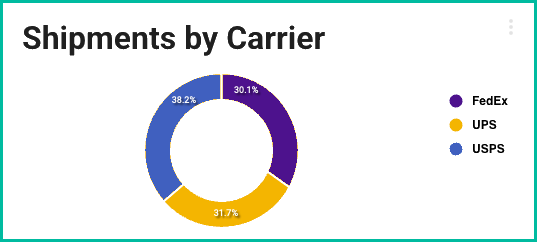
I want a single view in Postsale where I can monitor shipments, track their status, and spot trends at a glance. I’d like to see details such as shipments by carrier, shipping costs, sales totals, and more.
You can do that with the Postsale Dashboard!
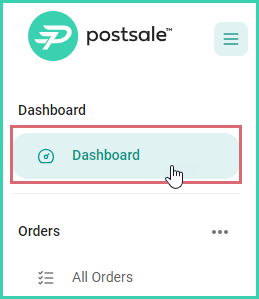
View the Dashboard
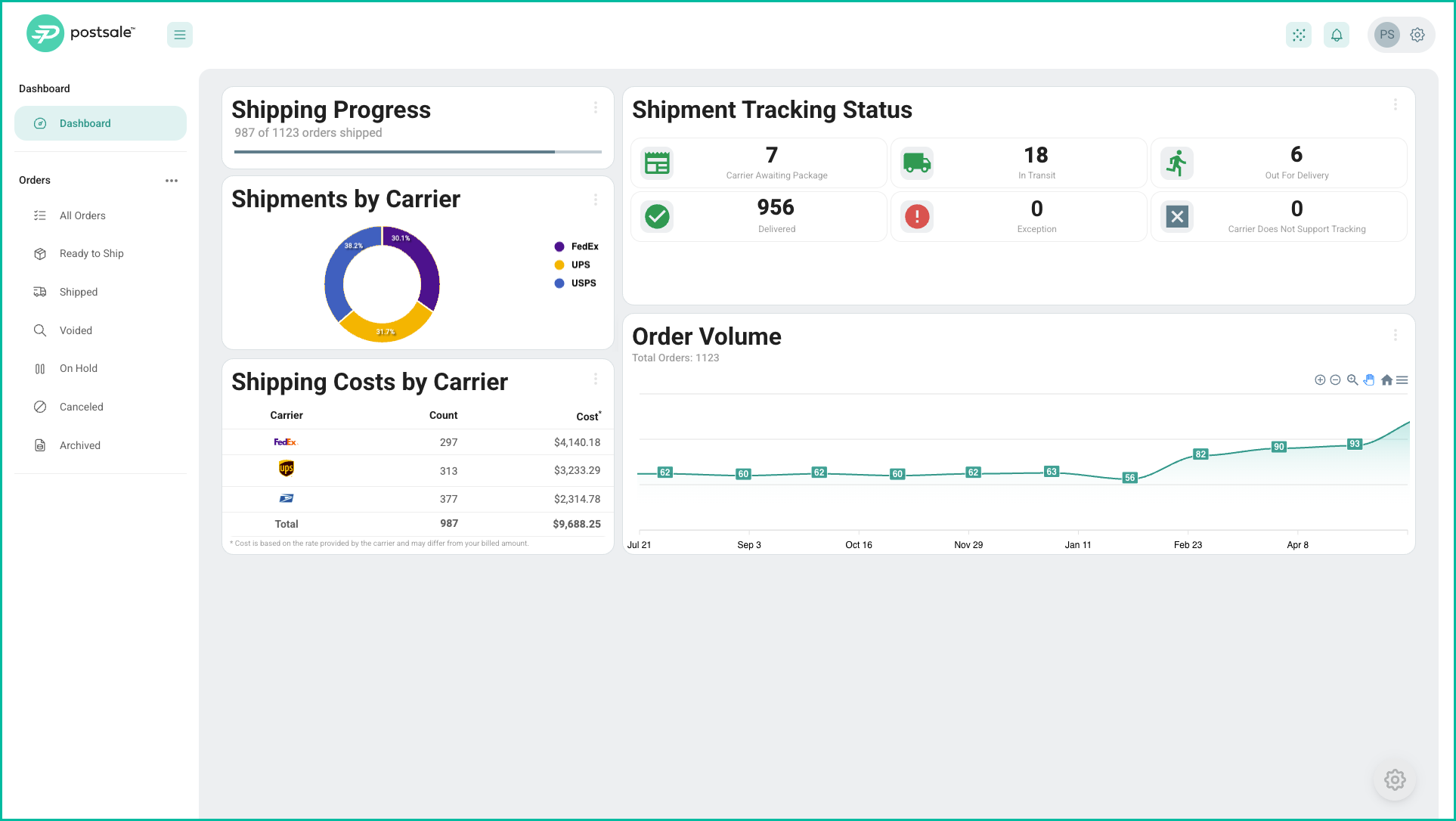
View the Dashboard by clicking on Dashboard in the Main Menu.
The first time you view the Dashboard, the default layout is displayed.
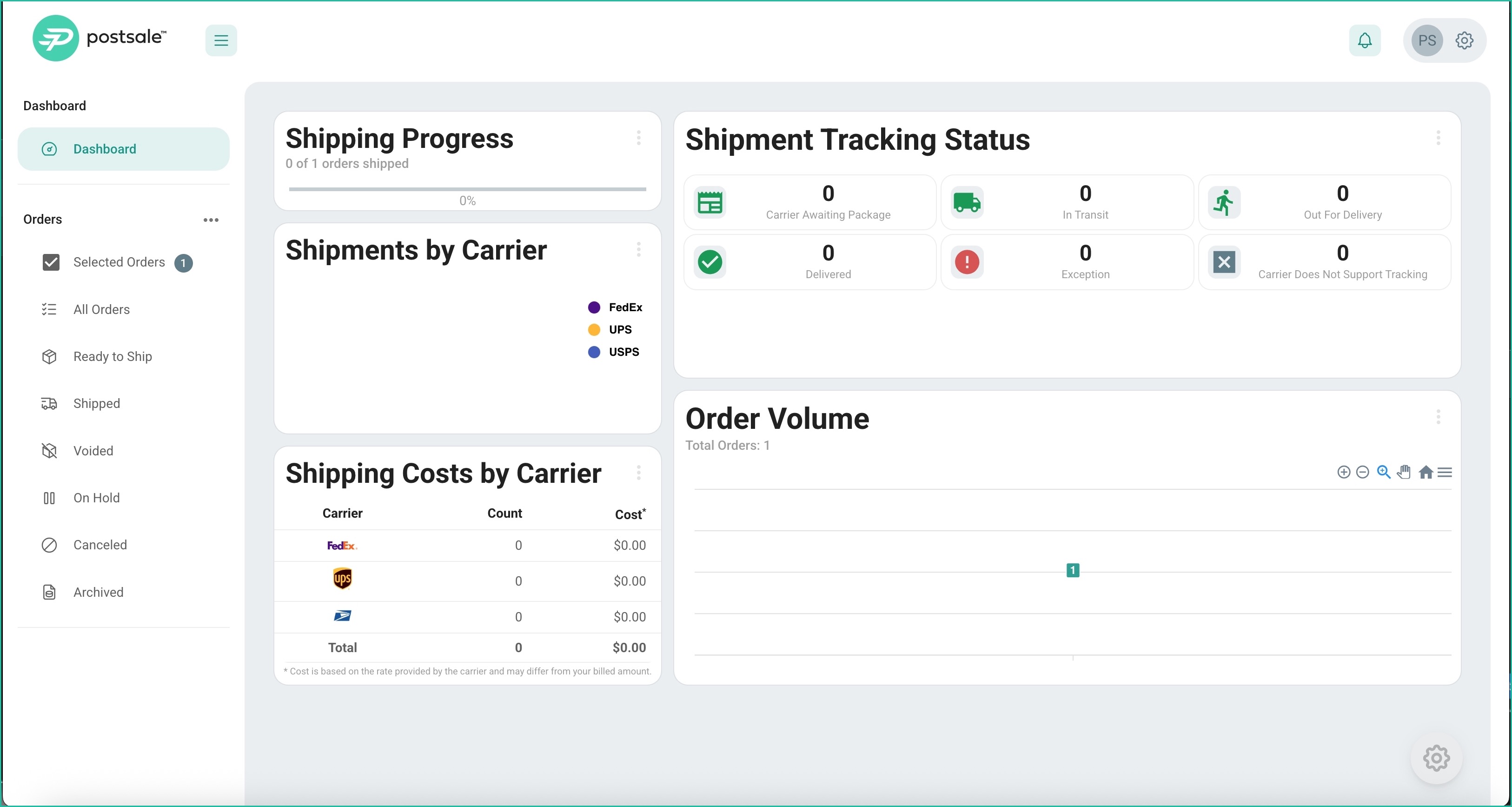
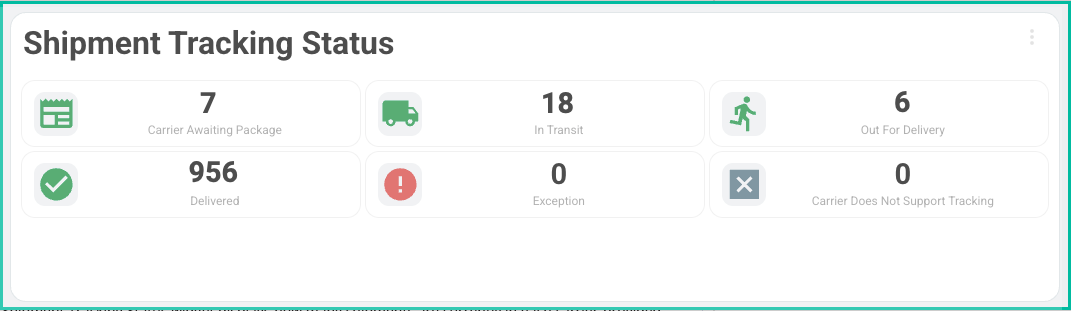
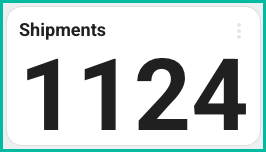
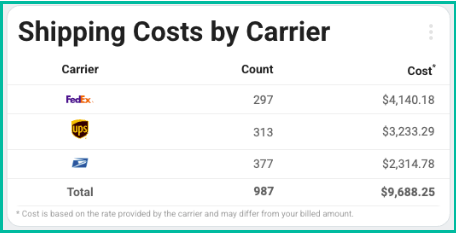
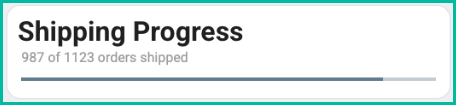
The default layout includes the Shipping Progress, Shipments by Carrier, Shipping Costs by Carrier, Shipment Tracking Status, and Order Volume widgets.
All widgets are configured to display data for orders in the All Orders filter. However, you can select a different filter when needed.
We'll explore how to personalize your Dashboard below.
View Full Screen
Maximize your view of the Dashboard by switching to full screen.
Click the gear icon to open the Dashboard Settings.
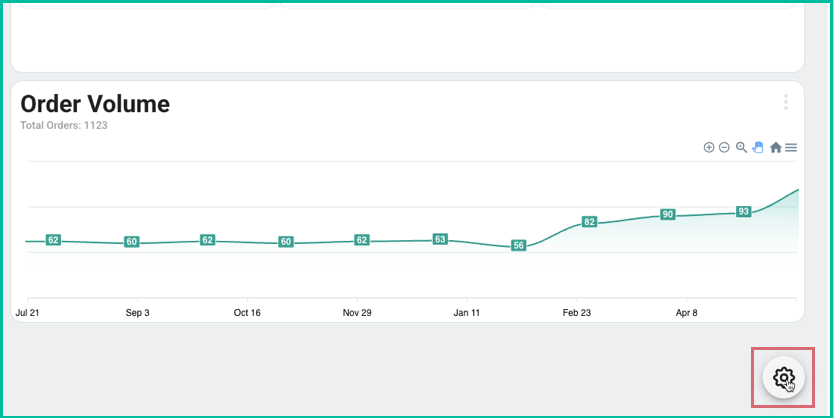
Select Full Screen.

The Dashboard expands to Full Screen mode.
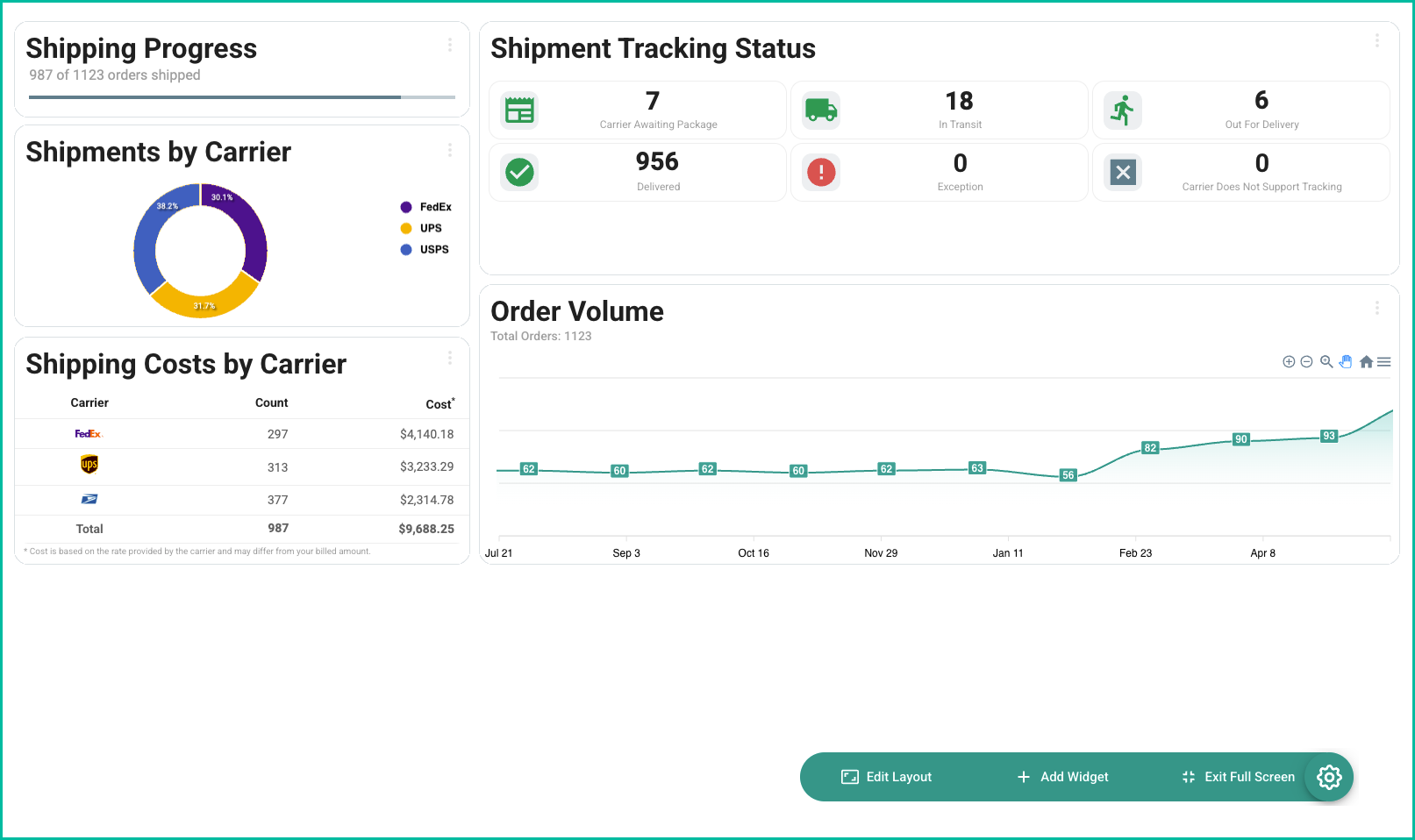
Click Exit Full Screen to leave Full Screen mode.

Personalize Your Dashboard
Customize the Dashboard by moving, resizing, adding, and removing widgets. The great thing is that your layout will automatically adapt to different screen sizes for the best visibility.
Edit the Dashboard's Layout
Edit the Dashboard's layout by moving and resizing widgets. This is a great way to ensure that the widgets on the Dashboard are organized and display well on the device you are using (computer screen, tablet, mobile device, etc.) . Here's how:
Click the gear icon to open the Dashboard Settings.
Select Edit Layout.

The Dashboard switches to the layout editor.
Modify the layout to meet your needs:
- Move Widgets: Click and drag widgets to move them to a new location within the Dashboard.
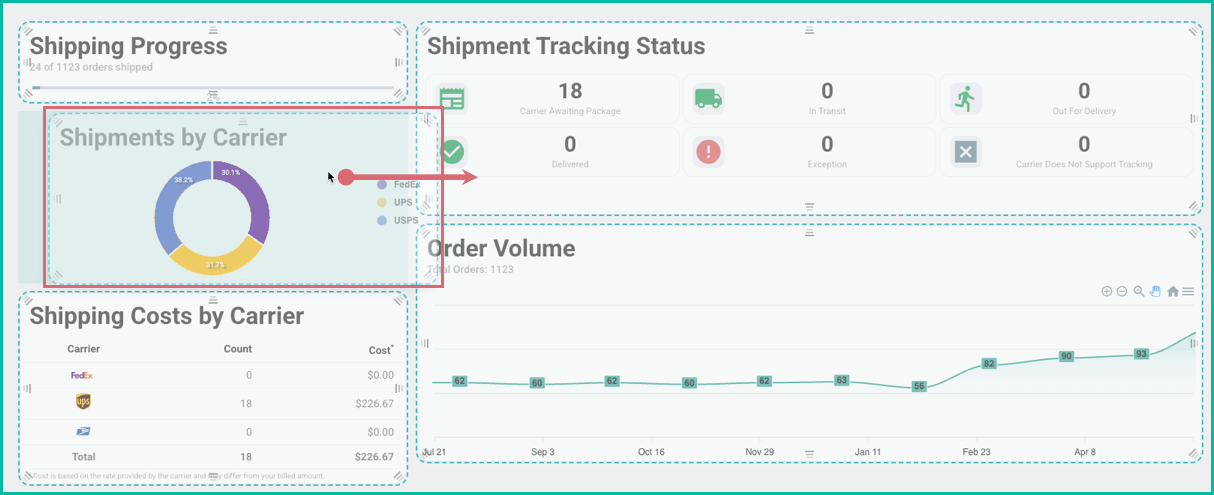
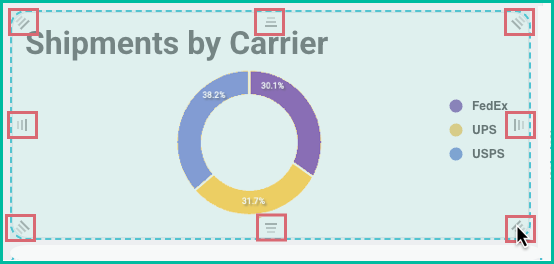
- Resize Widgets: Click and drag any widget's resize handle to resize the widget.
Click Save Layout to save your changes.

You also have the option to:
- Discard Changes: Click to revert back to the layout prior to making your changes.
- Reset Layout: Click to revert to the default Dashboard layout.
Add Widgets
Additional widgets can be added to the Dashboard to give more insight into your shipping and sales trends. A description of all available widgets is provided below.
Click the gear icon to open the Dashboard Settings.
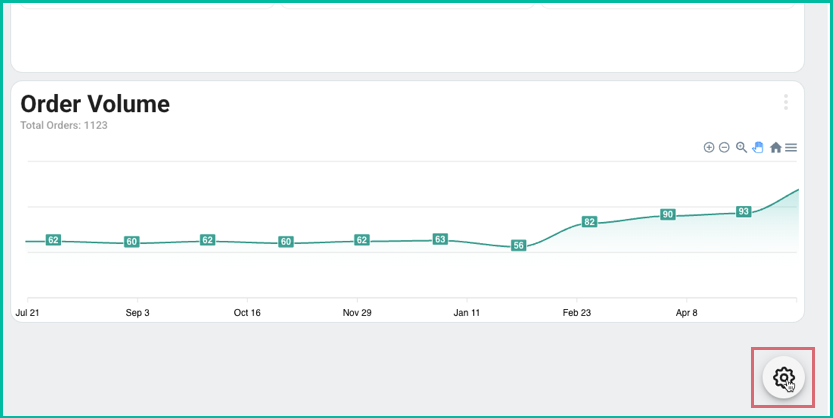
Select Add Widget.

Select the Widget you wish to add to the Dashboard.
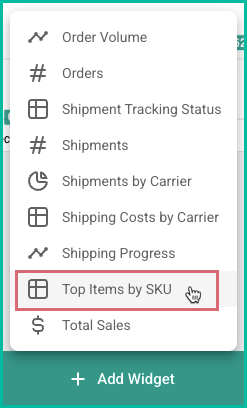
The widget is added to the layout. You can now move or resize the widget as needed.
Delete Widgets
Widgets that are no longer needed can be removed from the Dashboard:
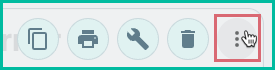
Expand the widget options menu in the widget you wish to delete.
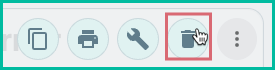
Click the Delete button.
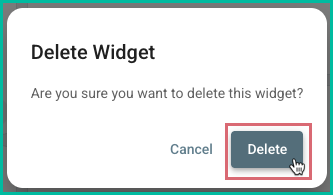
Confirm that you wish to delete the widget.
Work With Widgets
Widget Options and Settings
The widget options are available in all widgets, giving you the tools to copy or print the widget's information or modify its settings.
Expand the widget options menu for the widget you are working on.
The following options are available:
- Copy: Use the copy button to copy the widget's data. This is useful when you wish to paste the data into another application.
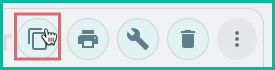
- Print: Sends the widget's contents to your browser's print window for printing or saving as a PDF.

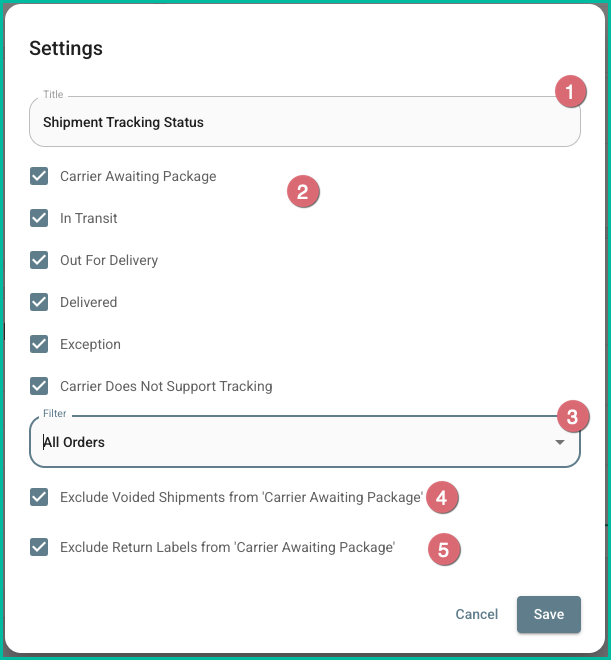
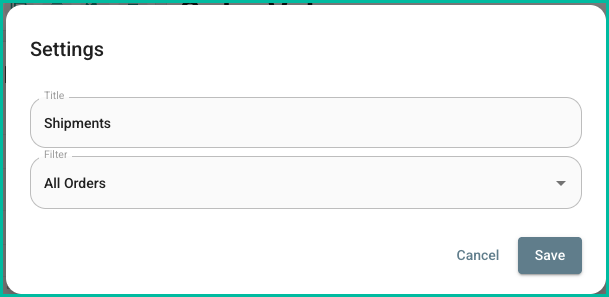
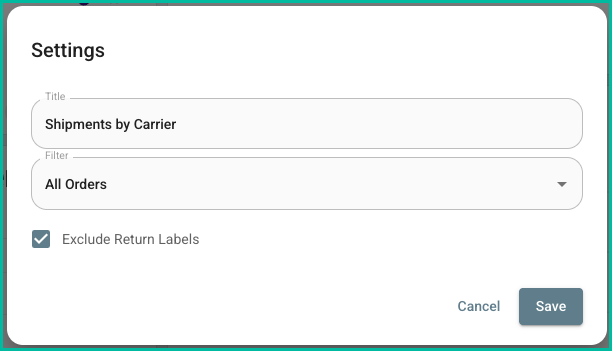
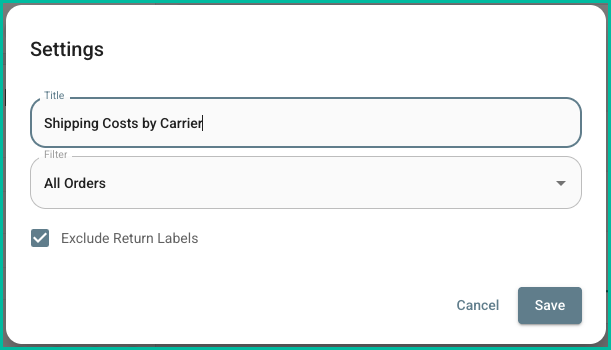
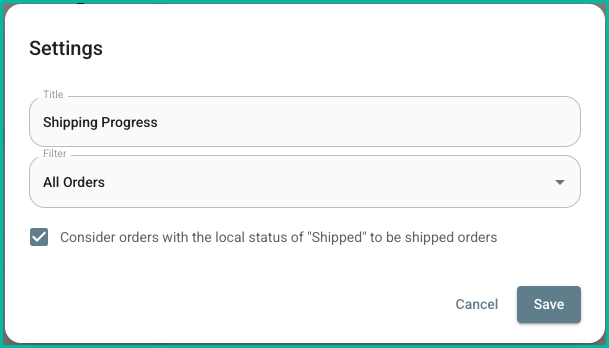
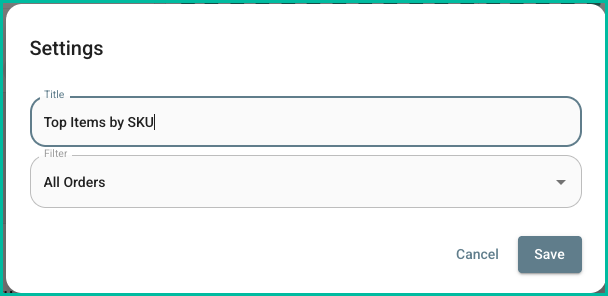
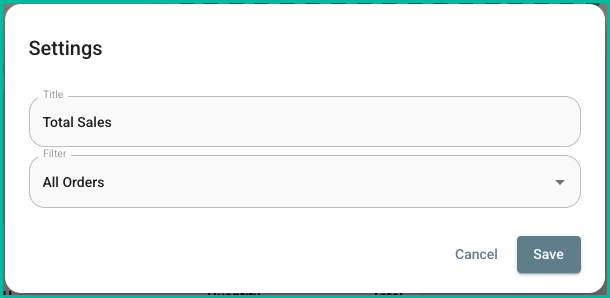
- Settings: Opens the widget's available settings. See below for a description of each widget's available settings.

- Delete: Used to remove the widget from the Dashboard layout.
Available Widgets
This section provides an overview of each available Dashboard widget, including:
- How the widget evaluates and presents data
- Customizable widget options and settings
By default, all widgets use the All Orders filter, which excludes archived orders.
Select the tab for the widget you wish to view.
Description
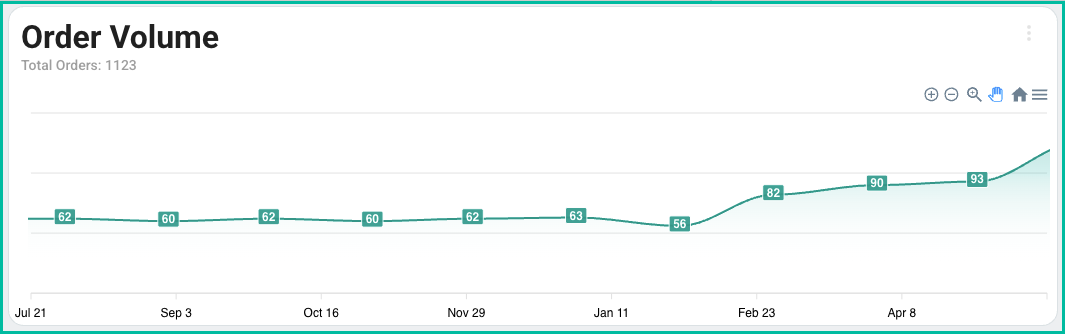
The Order Volume widget displays the total number of orders in Postsale over time.
You can group the data by day, week, month, quarter, or year, and apply a saved filter to focus on a specific set of orders.
The data includes orders that were:
- Entered manually
- Imported via CSV
- Received through webhooks
- Synced from connected platforms
Use the built-in tools to identify trends, zoom into specific time periods, or export the data as an image or CSV.
Available Settings
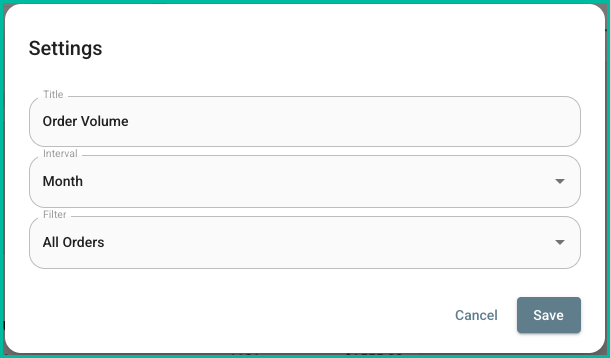
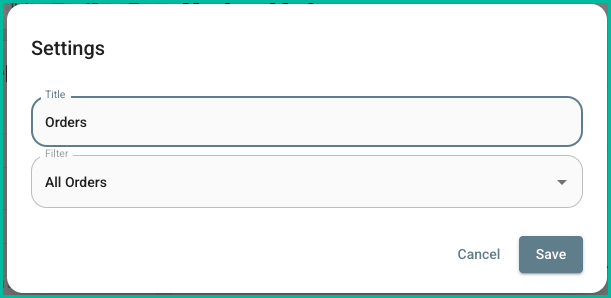
- Title: Customize the title shown at the top of the widget.
- Interval: Choose how the order data is grouped by day, week, month, quarter, or year.
- Filter: Select a saved filter to limit the results to matching orders.
Widget Tools
Use the tools available in the widget toolbar to:
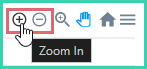
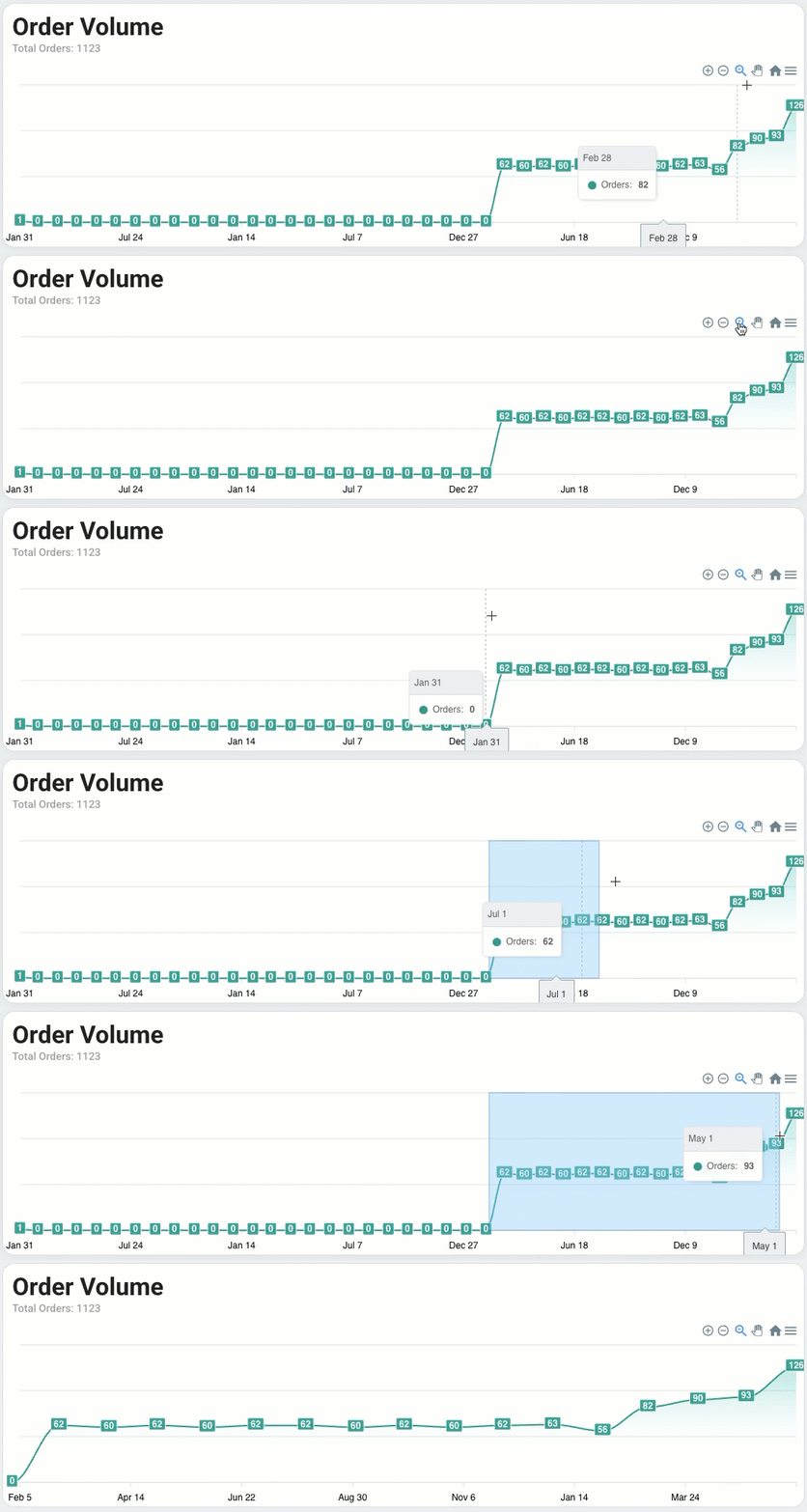
- Zoom in or zoom out to view more or fewer dates on the timeline.
- Select an area in the timeline to zoom in on the selected date range.
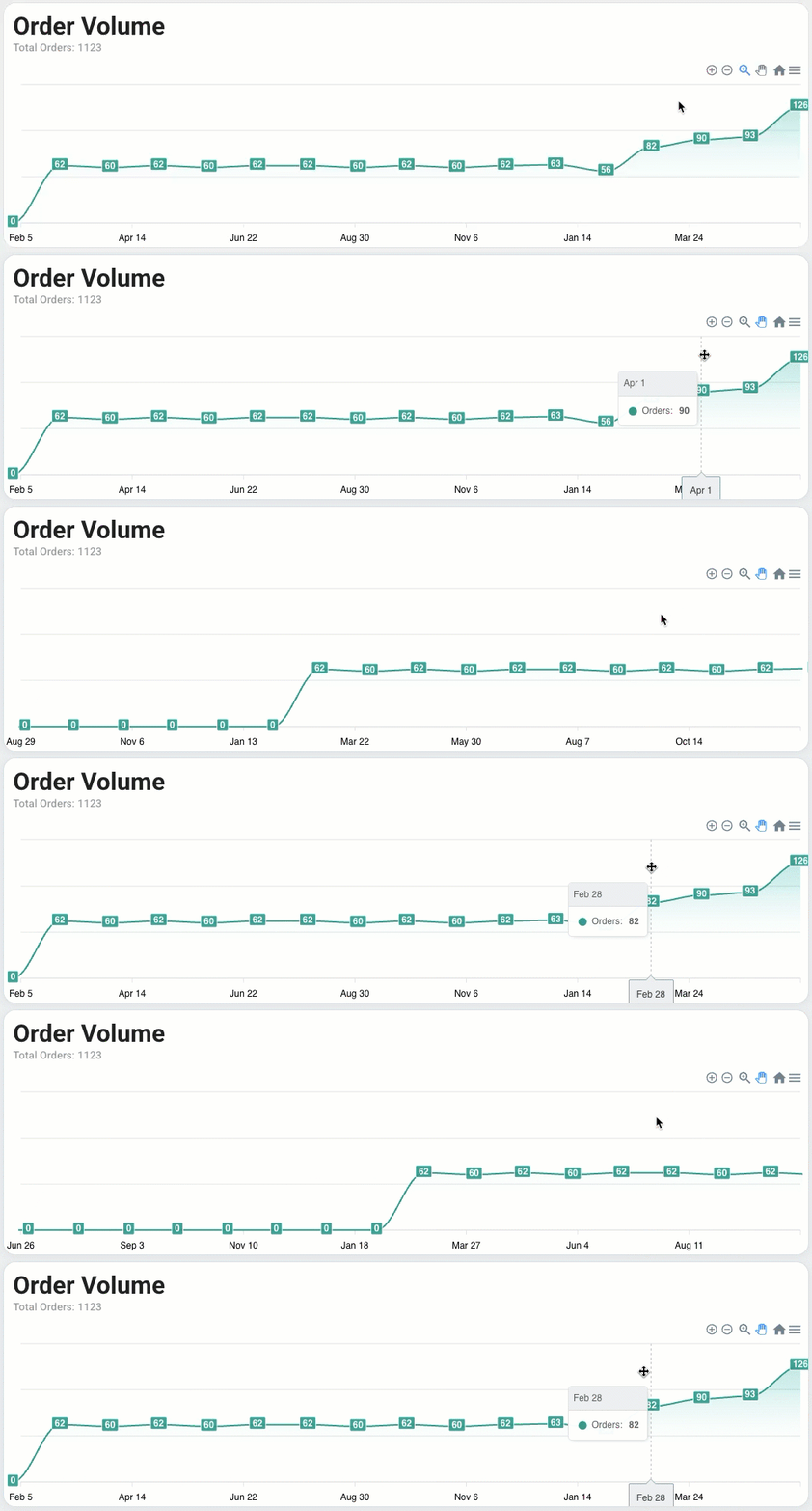
- Pan the timeline left or right.
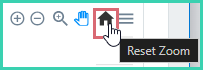
- Reset the timeline back to its original view.
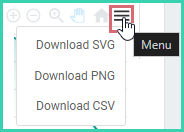
- Download the timeline view to an image file (PNG), a vector graphic file (SVG), or export the data on the timeline to a comma-separated value file (CSV).
Still have a question? Ask a person.
Write to support@postsale.com or send us a message. We reply the same business day, Monday to Friday, 8 AM to 5 PM Central.