Manage Orders & Shipments with Notes
Use Notes to communicate important information related to your orders and shipments
Order Notes are a great way to communicate important order and shipment information to all Postsale users. In this article, we will look at how to add a Note to an order, how to add the Notes column to the orders grid, and how to view Notes that have been added to orders.
Quick Tip Video
Real-World Example
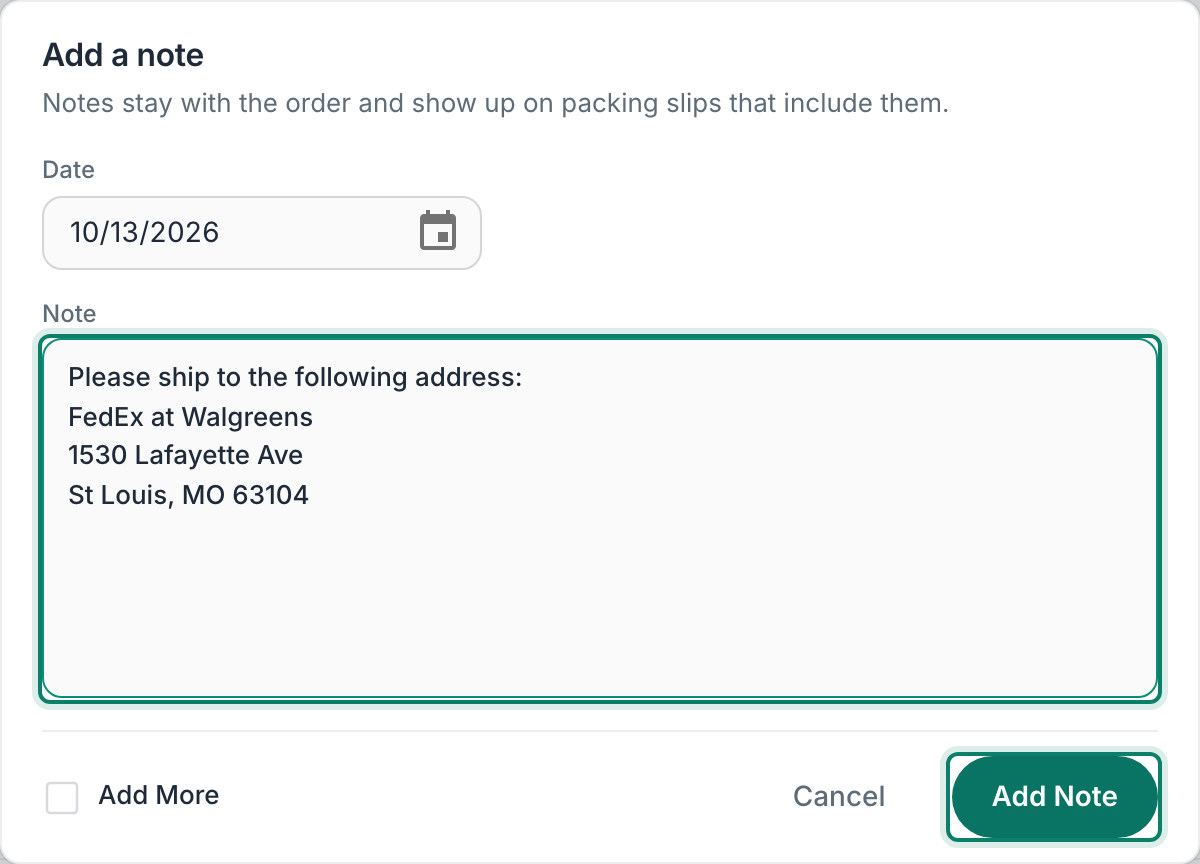
After placing an order, a customer called asking if their order could be shipped to a FedEx Hold at Location so that they can pick up the order while traveling on business. We need a way to communicate to the shipping department that the order should be shipped to a specific FedEx location.
A quick solution for this real-world example is to add a Note to the customer's order that specifies that the customer would like the order shipped to a specific FedEx location. Anyone working in Postsale can then view the Note.
Add a Note
Double-click the order to open the Order Details screen.
Scroll down to Notes at the bottom of the Order Details screen.
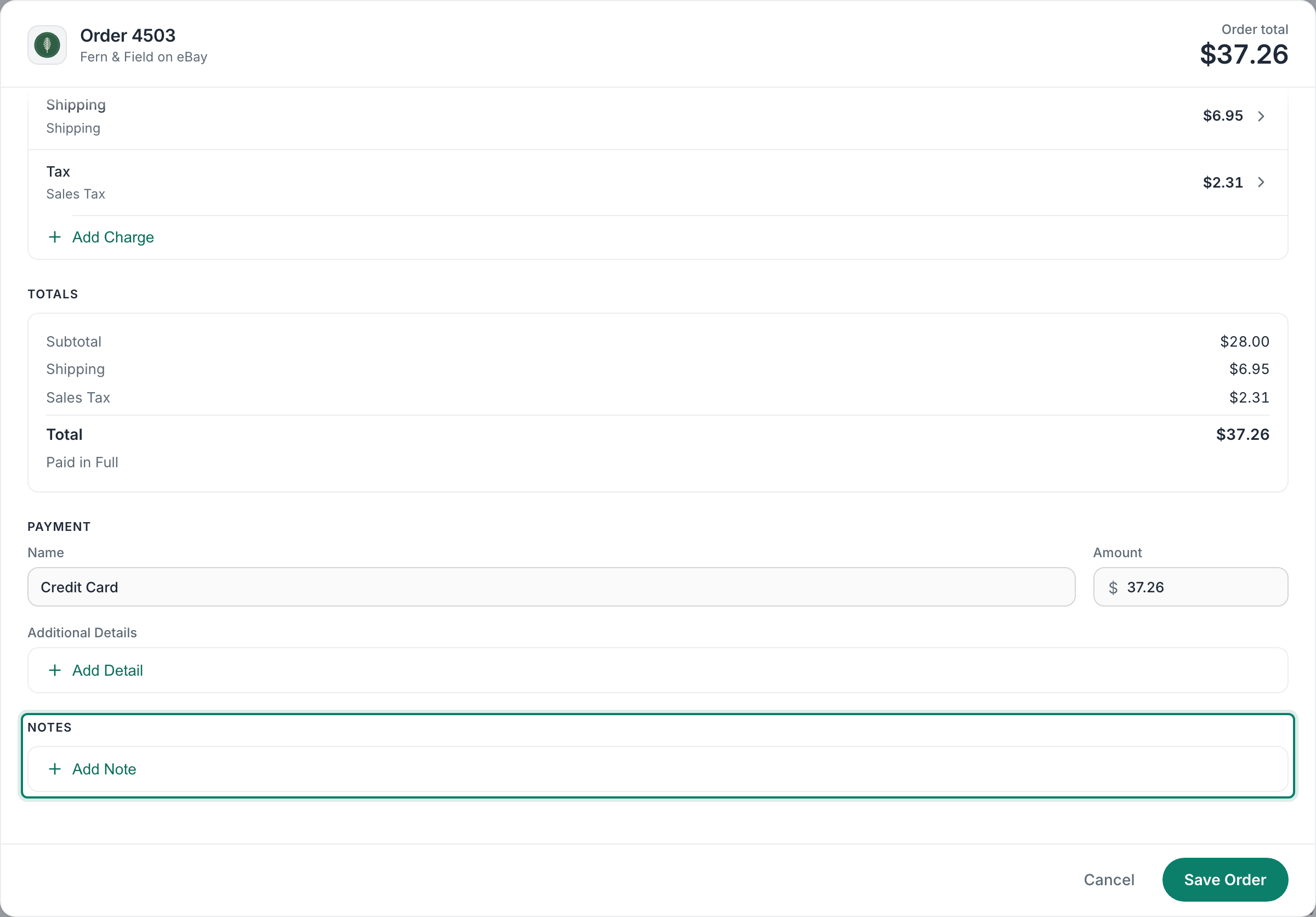
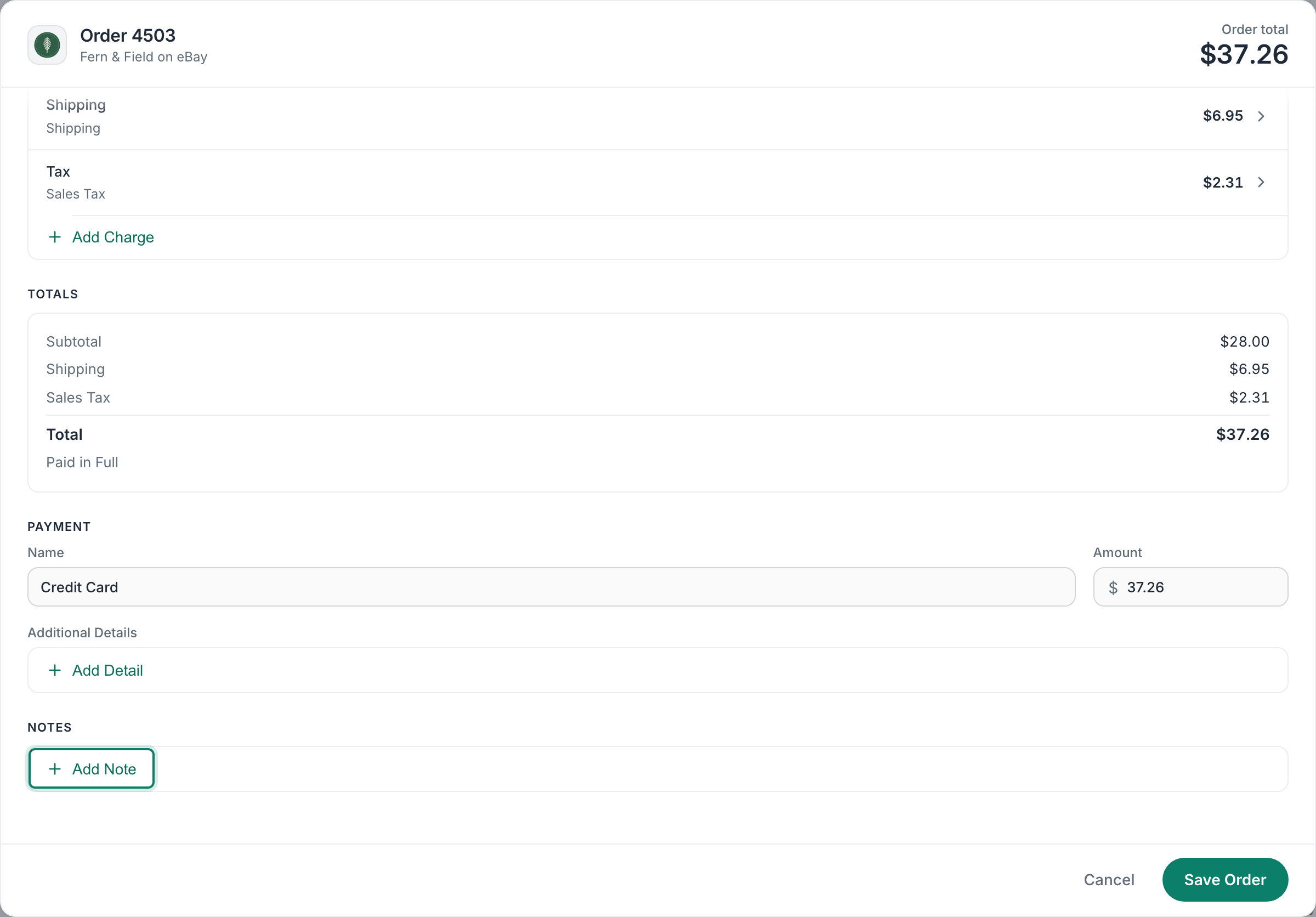
Click Add Note.
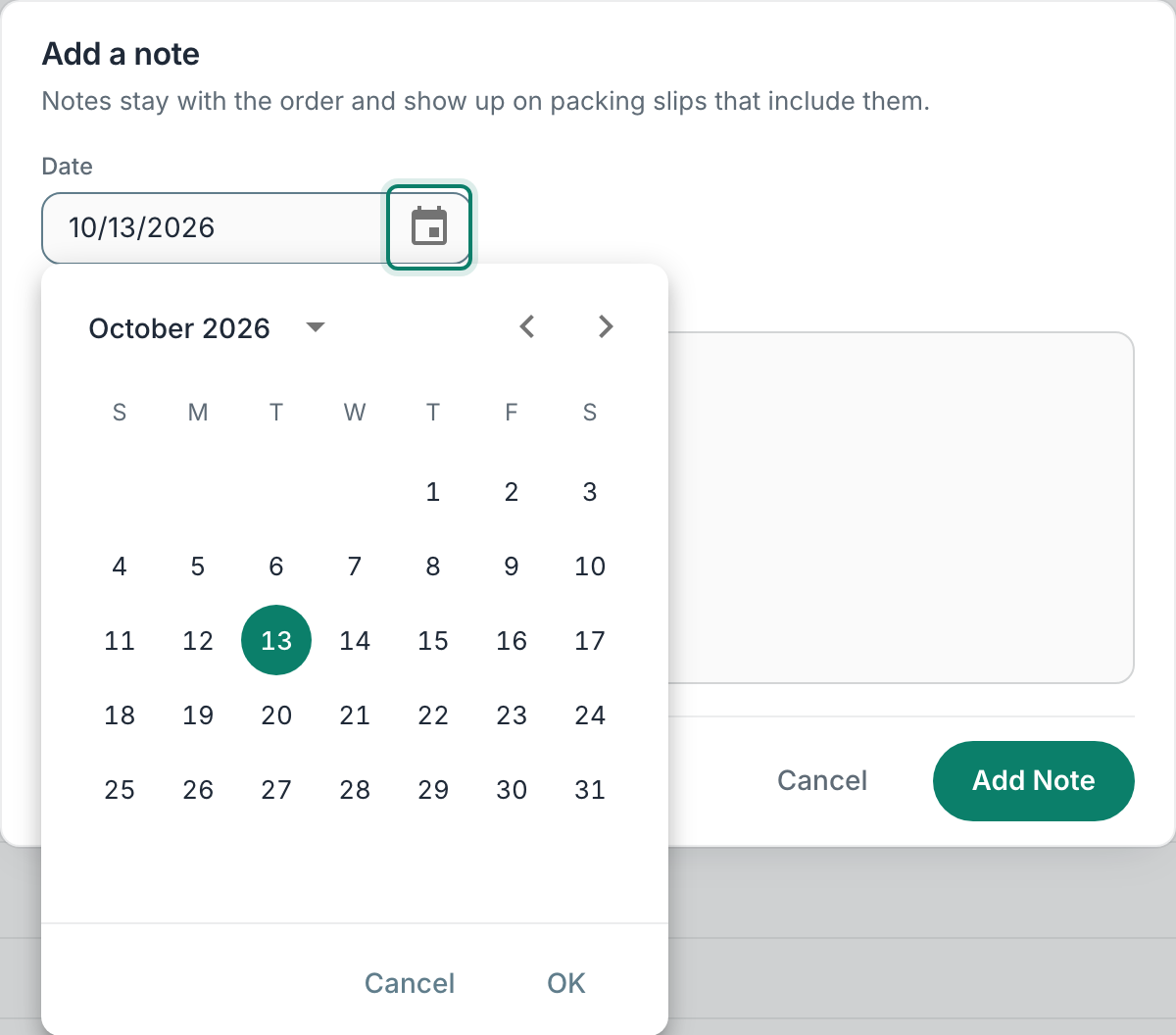
(Optional) Click the calendar icon to choose a date for the Note. The current date is filled in by default.
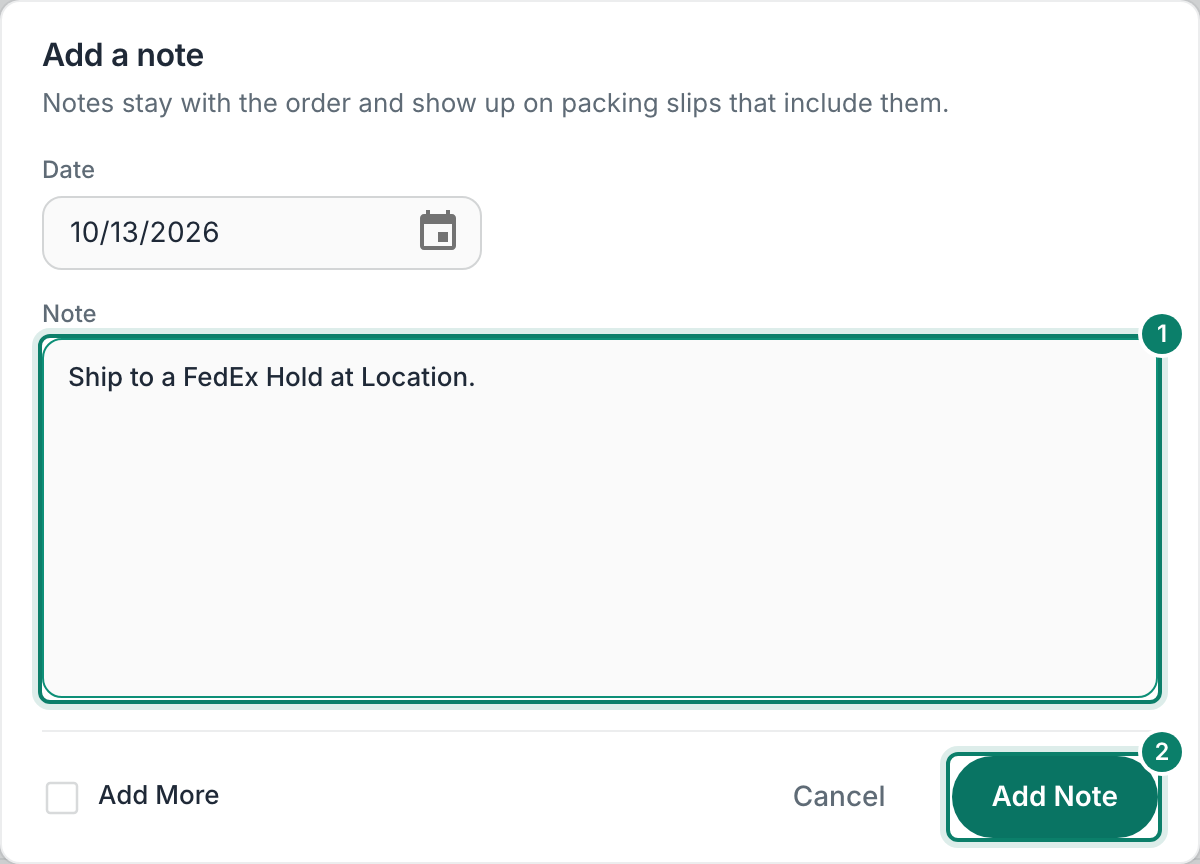
Enter the Note into the Note field. Then, click Add Note.
The Note is added to the order.
When needed, enter any additional Notes by repeating steps 4 - 6.
Click Save Order.

The Notes have been added to the order and are now available to view by all Postsale users.
Add the Notes Column to the Orders Grid
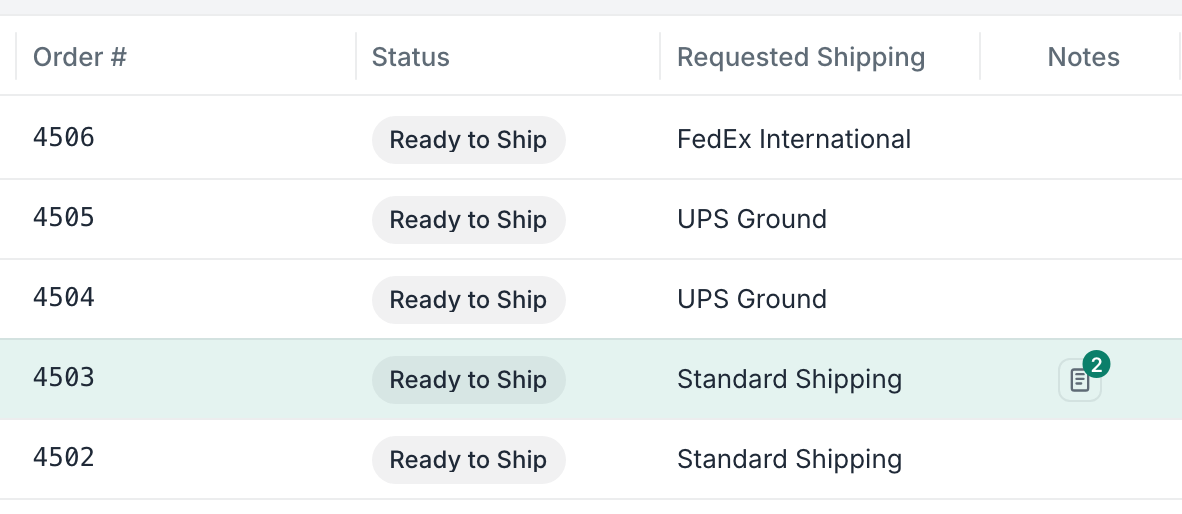
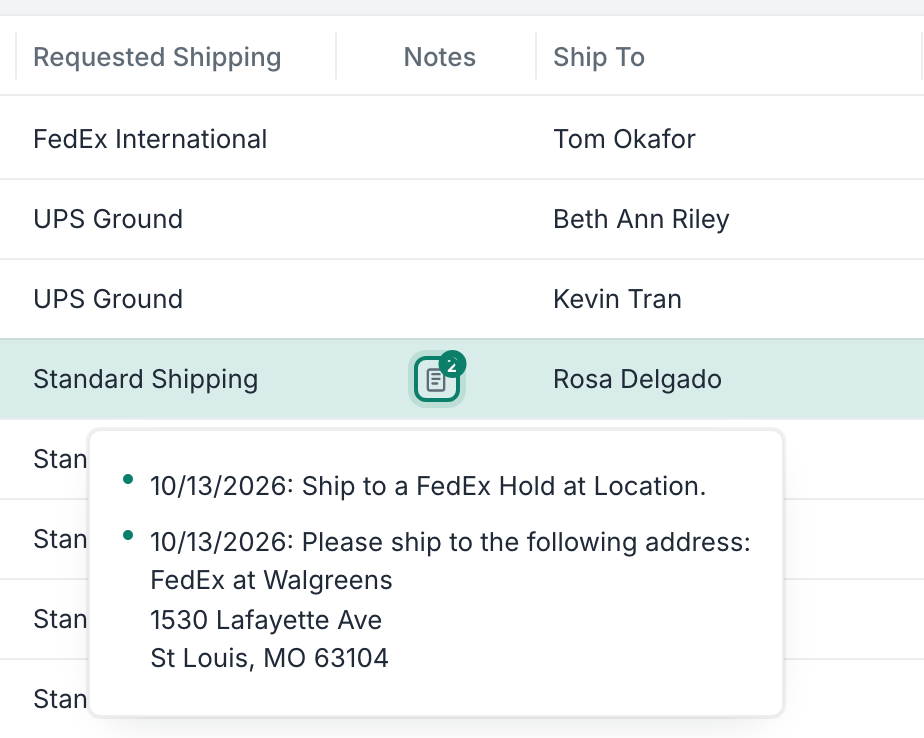
A Notes icon is displayed in the Orders Grid for any orders that contain one or more Notes.
Follow these steps to ensure that the Notes column is visible in the Orders Grid.
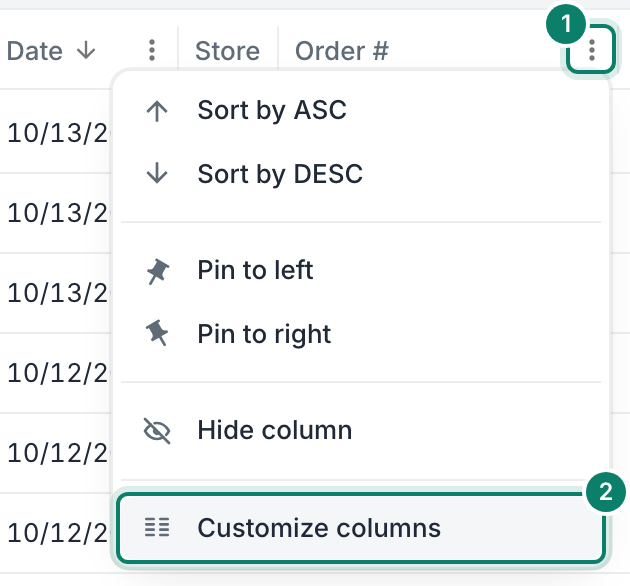
Hover over any column heading in the Orders Grid, click its three-dot menu icon and select Customize columns.
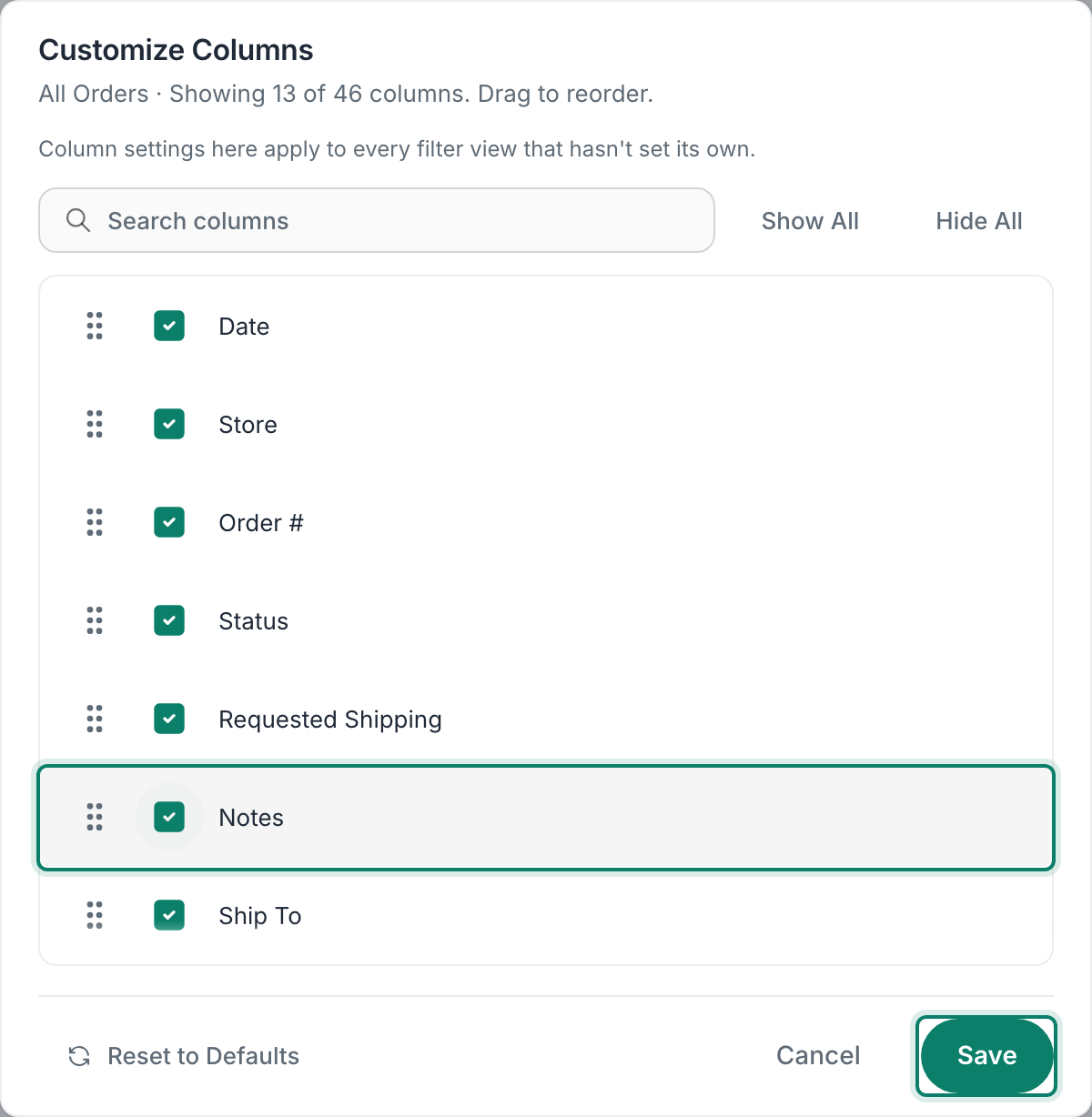
Make sure that the Notes column is checked so that it is visible in the grid. Then, click Save.
The Notes column is now visible.
View Notes
Hover over the Notes icon to view the Notes associated with an order. When multiple Notes are associated with an order, the icon will indicate the number of notes, and all of the Notes will be visible.
Still have a question? Ask a person.
Write to support@postsale.com or send us a message. We reply the same business day, Monday to Friday, 8 AM to 5 PM Central.